Online catalog
Order Portal for Small Distributors Using Acumatica
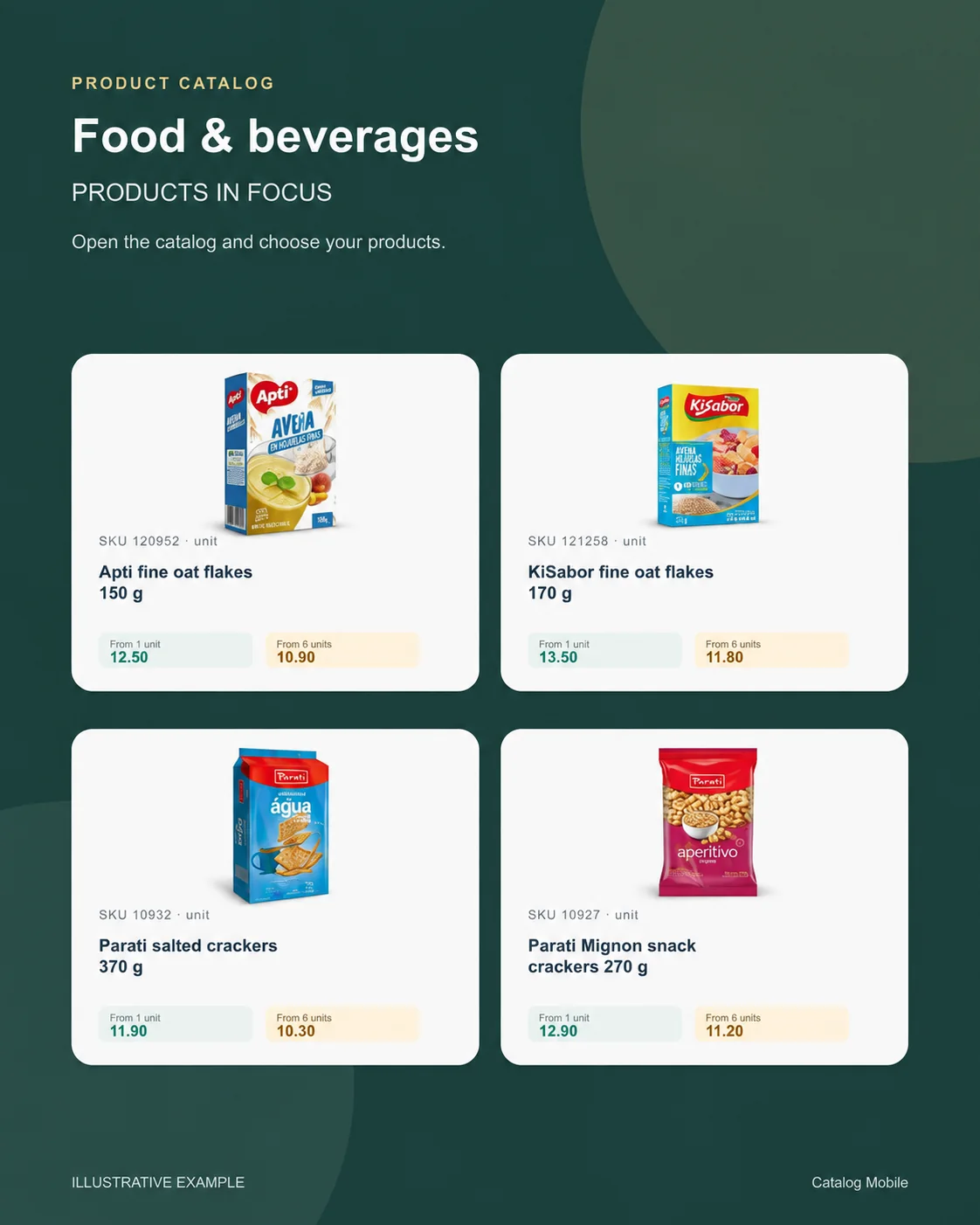
The buyer opens the catalog, finds a product, selects quantities and reviews the cart. Use a stable product code, a clear name, a selling unit, an appropriate photo and the intended price.
Start with a small product selection, check how it appears to the buyer and review a sample order before expanding. A clear catalog is useful when it matches the way your team actually sells.
Prepare the data the buyer actually needs
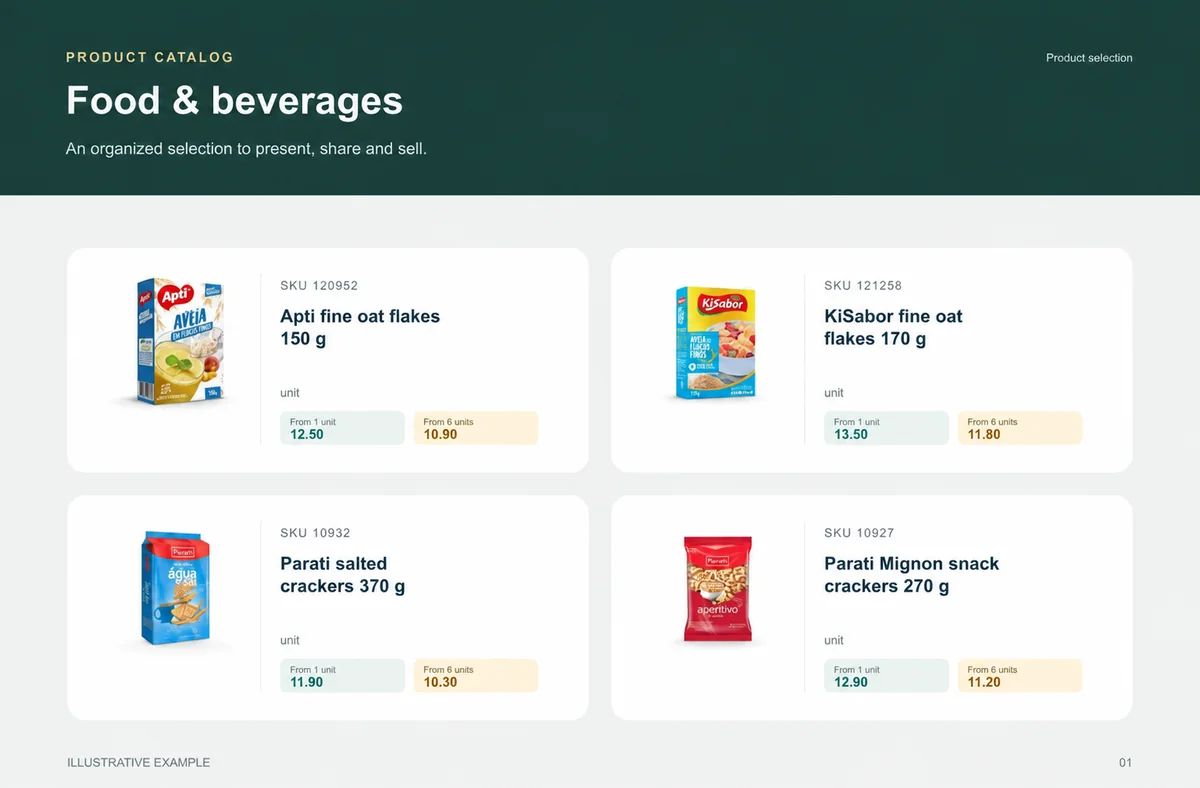
Use a stable product code, a clear name, a selling unit, an appropriate photo and the intended price. Keep internal costs and confidential notes out of the public selection.
- Use a stable product code, a clear name, a selling unit, an appropriate photo and the intended price. Keep internal costs and confidential notes out of the public selection.
From a product question to an order
The buyer opens the catalog, finds a product, selects quantities and reviews the cart. The configured checkout collects the information needed for the order. Your team keeps the commercial review and fulfilment process.
Keep the seller and price context clear
When your operation uses representatives, check the seller link and the applicable price table. Test with the intended customer view, including quantities and packaging rules where configured.
Check your ERP edition and data scope
Define the Acumatica tenant, company, branch and item set. Identify customer or price-class pricing and alternate units. Assess customisations and authorised access with the technical owner.
- Before choosing a data route, confirm with the operation which fields, permissions, edition and update direction can support this selection.
What this workflow does not guarantee
Receiving an order does not automatically prove payment, credit approval, reserved stock or ERP invoicing. Confirm which of those stages your configuration and integration support before relying on automation.
Review the result as a buyer
Compare product names, codes, units and prices with the original data. Test one long product name, one product with no image and different quantities. Ask a colleague to find an item without your guidance. Use what was confusing to improve categories and descriptions.
Decide whether the workflow fits
A useful pilot shows whether the buyer can understand the range and whether your team can review the order. Keep your existing sales process during evaluation. Confirm product and user limits, price tables and integration work before selecting a plan.
Help buyers choose without another message
In B2B distribution, buyers need SKU, category, unit and commercial price in view before they choose a quantity. When those details are split between an old PDF, spreadsheet and chat, choosing takes longer and the sales team has to explain the basics again. An organised selection brings the distinctions together and makes the next step easier to see. As buyers build a list, they connect product, unit and quantity, while the team receives a clearer request for commercial review.
- Show SKU, category, unit and commercial price where buyers compare the items.
- Use the sales presentation to highlight what helps customers choose the range.
Build a selection customers can compare
Present a selection of fast-moving, replenishment and campaign items in a short selection where SKU, photo, presentation and price sit together. Let buyers adjust quantity and see the unit, applicable tier and list that will move to review. Demonstration values make the commercial reading easier to understand; they are not a public offer. Two quantity tiers help buyers see the applicable price before they send the list. As quantity changes, the unit price, subtotal and total follow the choice. A first selection focused on one range helps the team improve what buyers actually consult.
- Include one long name and one alternative presentation in the first selection.
- Show photo, SKU, unit and price in the same buying context.
Bring ERP product data into the sales presentation
Keep managing products in Acumatica, and use the catalog to turn the range into a presentation buyers can browse. Define the Acumatica tenant, company, branch and item set. Identify customer or price-class pricing and alternate units. Assess customisations and authorised access with the technical owner. The data route depends on the edition, account, available fields and permissions. Before sharing, confirm which products, units and prices reach the selection. Once a buyer chooses, final price, availability, credit, delivery, tax and invoicing remain in the commercial flow your operation defines.
- Choose the fields buyers need to compare the range.
- Keep credit, availability, delivery, payment, tax and invoicing in the operation’s commercial flow.
Start with one range, then expand with confidence
The next range is ready to scale when buyers can find a selection of fast-moving, replenishment and campaign items, understand SKU, category, unit and commercial price and move forward without a side explanation. Decide who receives the request and where the team confirms commercial conditions. Repeat the Acumatica company, account or edition scope used to prepare this range. Start with the range that generates the most questions in customer conversations, then let buyer choices guide the next selection. The commercial owner looks after presentation and conversation; the data owner keeps the commercial record, including SKU, category, unit and commercial price, aligned with the source date. With the list organised, the request continues through the commercial review your operation already uses. Keep the same Acumatica scope in the process used to prepare the selection.
- Extend to the next range using what made the first choice easier.
Will it work for my business?
Does a customer need an account?
Access and checkout requirements depend on the catalog settings. Review the configured buyer journey in a private browser before inviting customers.
Can sales representatives use it?
The system includes seller and customer order contexts. The users, price tables and available settings depend on the plan.
Is an order the same as a payment?
No. An order records the requested items. Payment processing is a separate capability that must be available and configured for your operation.
How can I evaluate this without moving my whole operation?
Use a small, authorised selection of products. Compare the PDF or online catalog with your source data, test on a phone and review the resulting order. Expand only after correcting discrepancies.
How can we tell whether the selection is clear?
Open it on a phone, ask someone to find real products and record every question about SKU, unit, presentation or price before expanding.
Does the catalog replace commercial review?
No. It organises product presentation and can capture intent; the operation still validates the stages that depend on price, stock, credit, delivery and invoicing.